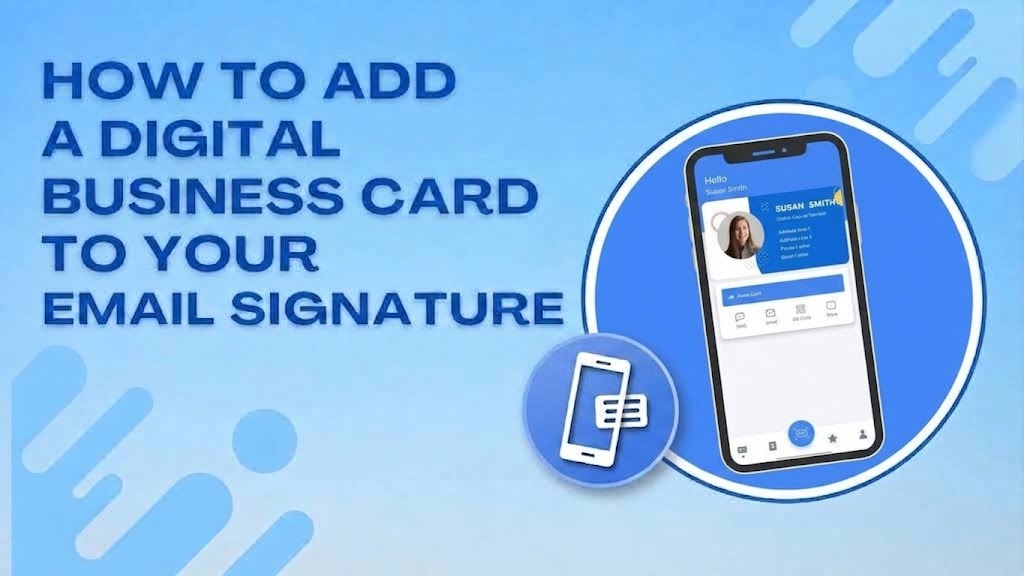
A digital business card email signature turns every message you send into a quiet networking opportunity, since a recipient can tap through to your full profile without you doing anything extra. This guide covers exactly how to set this up in Gmail, Outlook, and Apple Mail, and why it works better than the old static signature block most people still use.
Why Your Current Signature Is Wasted Space
Most email signatures list a name, a title, and a phone number in plain text that nobody can act on directly. A recipient has to manually copy your number into their contacts or search your name on LinkedIn separately. The average professional sends thirty to forty emails a day, and each one is a missed chance to let someone save your details in one tap instead of typing them out by hand. A signature with a live link to your digital card fixes this without adding any extra step to how you already write email.
What a Linked Signature Actually Does
When you add business card link to email signature text, the recipient clicks through to a mobile-optimized page showing your name, title, company, phone, email, and any social or portfolio links you have added. From there, a single button saves your full contact information directly into their phone, no manual typing and no app required on their end. Because the link points to a live page rather than a static image, updating your job title or phone number once means every email signature you have ever sent, going back months, now points to the correct information automatically.
Setting Up Your Signature in Gmail
In Gmail, open Settings, scroll to the Signature section, and either create a new signature or edit your existing one. Type your closing lines as usual, then select a line of text such as “View my digital business card” and use the link tool to attach your card’s URL. Save your changes, and every new email you compose will carry the clickable link automatically. Gmail also supports inserting a small QR code image if you want a scannable option alongside the text link, though keep the image modest in size since large images can slow down signature loading on some devices.
Setting Up Your Signature in Outlook
Outlook follows a similar pattern. Go to Settings, then Mail, then Compose and Reply, and find the signature editor. Build your sign-off block, then highlight the line you want to turn into a link and use the insert link option to paste your card’s URL. Classic desktop Outlook also offers an older “Electronic Business Card” feature that embeds a static vCard file, but this ships a frozen snapshot that goes out of date the moment your details change, so a live link is the more reliable choice for anyone who updates their information more than once a year.
Setting Up Your Signature in Apple Mail
In Apple Mail, open Mail Settings, click Signatures, and select the account you want to update. Type your signature block, then highlight the relevant line and apply a link using the same method as any other hyperlinked text in the editor. Since a large share of email opens happen inside Apple’s own mail clients, getting this right for Apple Mail specifically matters even if you personally compose from a different platform, since your recipients are reading in whatever client they prefer.
Getting Your Card Link Ready
Before adding anything to your email client, make sure your card itself is complete and accurate. Add your digital business card to your email signature by first creating your profile with your current title, phone number, and any links you want a recipient to see, since the signature link is only as useful as the page it points to. A half-finished profile with missing contact details defeats the purpose of adding it to every email you send.
Why This Matters Most for Sales and Client-Facing Roles
Anyone who sends a high volume of external email benefits the most from this setup, particularly sales reps, consultants, and account managers who are actively trying to stay memorable across many ongoing conversations. If your role involves regular outreach, our guide on digital business cards for sales teams covers how to roll this out consistently across an entire team with shared branding, so every rep’s signature carries the same professional look rather than a mix of personal styles.
A Few Habits Worth Building In
Keep your signature link short and clearly labeled, since a line like “View my digital business card” performs better than a raw URL that looks like spam to some email clients. Test the link yourself after setting it up by sending a message to a second email account and clicking through on both a phone and a desktop. Revisit your signature every few months to confirm the link still opens correctly, since email client updates occasionally strip formatting from older signatures without warning.
Final Thoughts
A digital business card email signature costs nothing extra to set up and works passively in the background of something you already do dozens of times a day. Unlike a physical card that only reaches people you meet in person, a signature link reaches every single person you email, whether that is a new prospect or someone you have worked with for years. Once it is set up correctly across Gmail, Outlook, or Apple Mail, it keeps working without any further effort on your part.